User Guide
How to Register Login Password Recovery Add Meter Account Update Business Profile Change Password
| 1 |
Visit the Registration Page:
https://www.sarawakgas.com/account/register
|
| 2 |
Complete the Registration Form.
- Personal Information
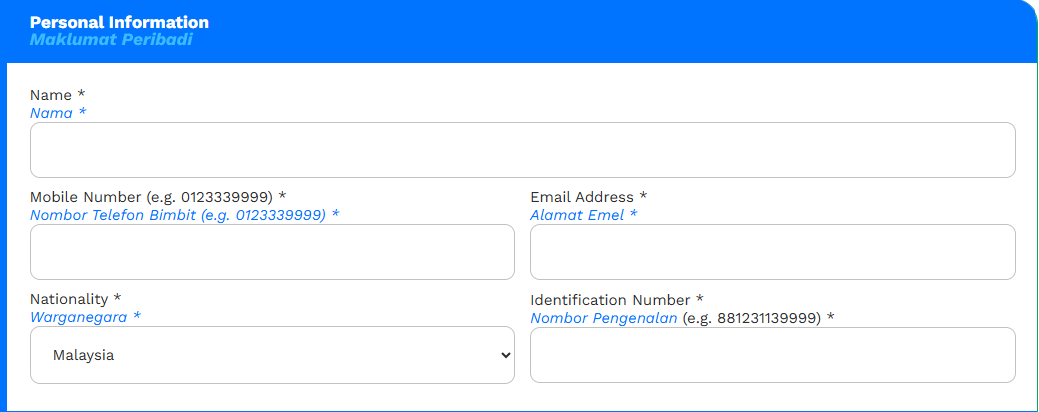
- Name: Your full name.
- Mobile Number: Format: 0123339999.
- Email Address: A valid email (used for login).
- Nationality: Select from the dropdown.
If you selected Malaysia, please provide:
- Identification Number: Your MyKad/NRIC number.
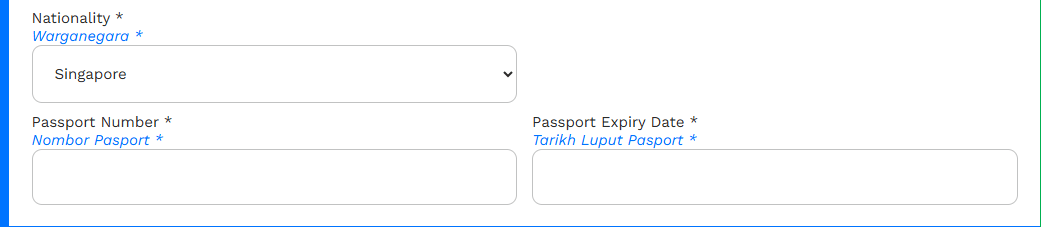
If you selected another country, please provide:
- Passport Number
- Passport Expiry Date
- Business Information
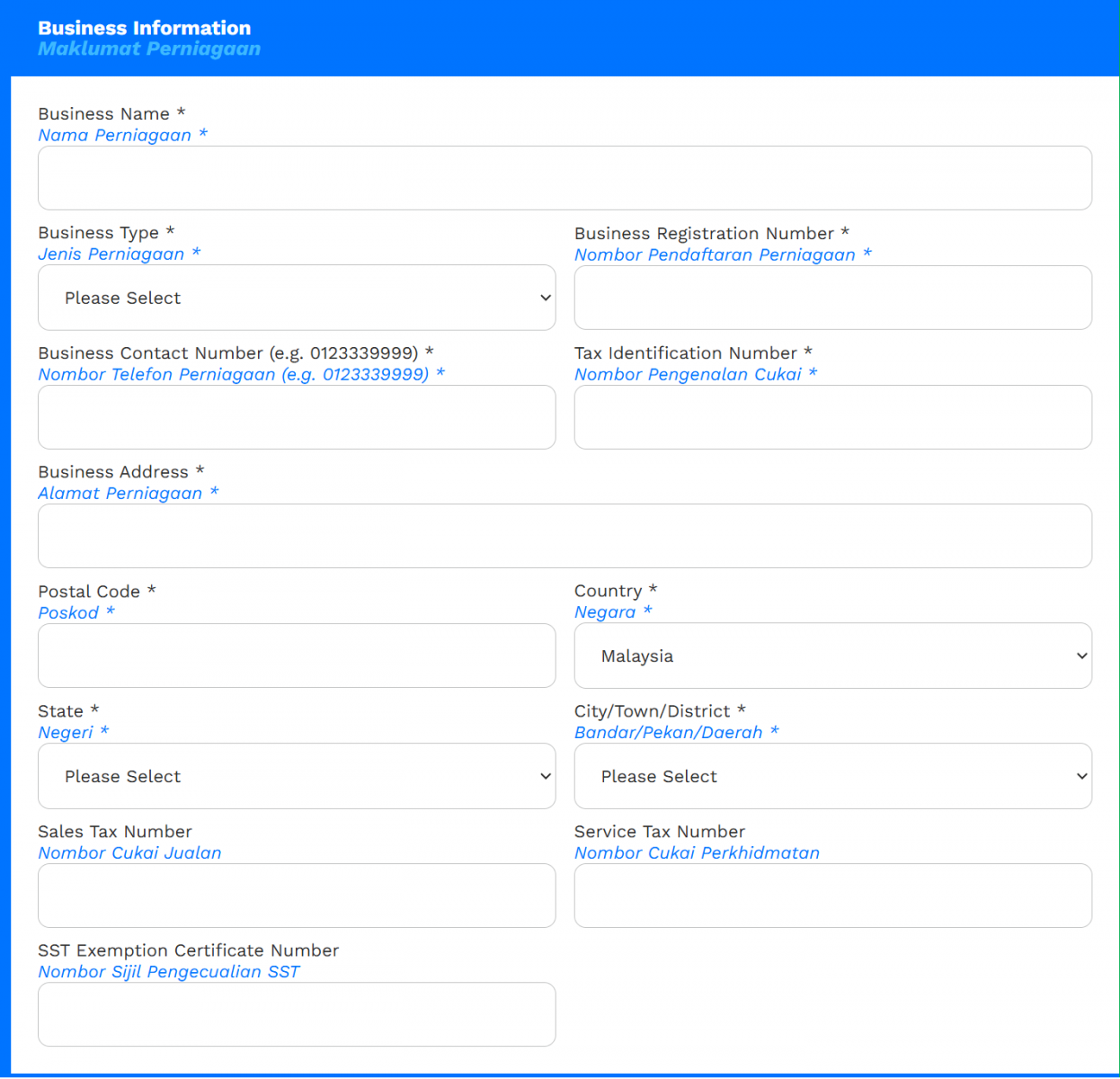
- Business Name
- Business Type: (e.g., Sdn Bhd, Sole Proprietorship)
- Business Registration Number
- Business Contact Number: Format: 0123339999.
- Tax Identification Number
- Business Address
- Postal Code, City/Town/District, State, Country (auto-filled as Malaysia)
- Sales Tax Number (if applicable)
- Service Tax Number (if applicable)
- SST Exemption Certificate Number (if applicable)
- Attachments
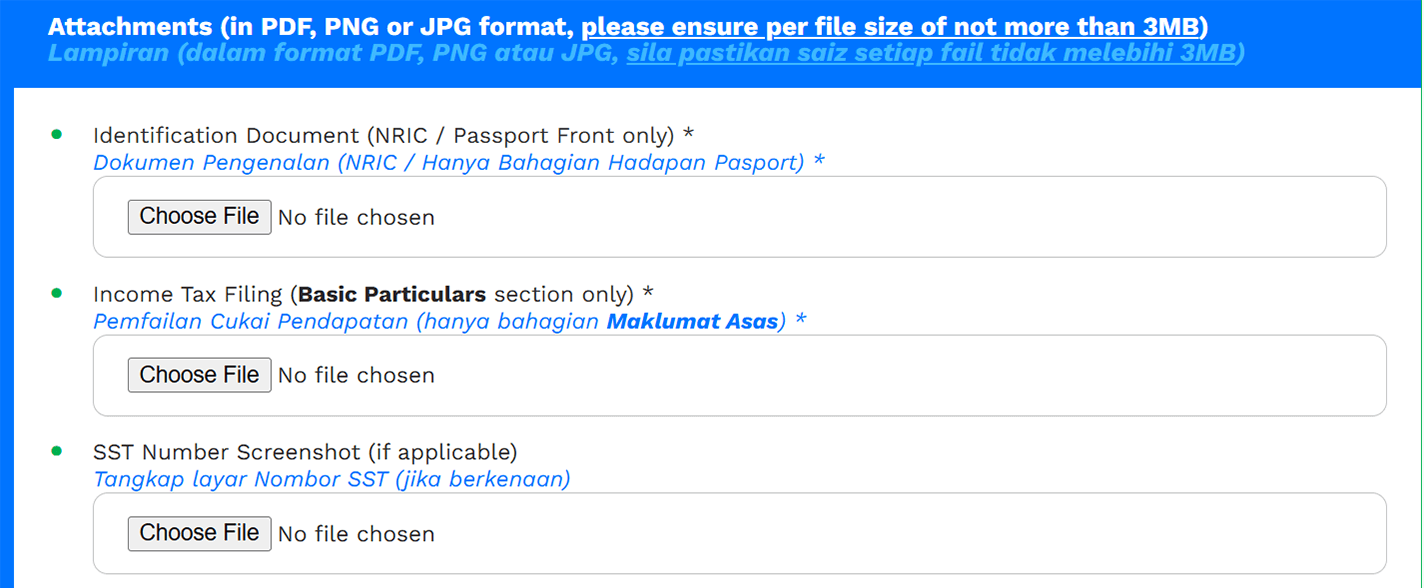
Upload the required attachments. Ensure all files are in PDF, PNG, or JPG format and do not exceed 3MB each.
- Identification Document (NRIC or Passport front only)
- Income Tax Filing Document (Basic Particulars section only)
- SST Exemption Screenshot (if applicable)
|
| 3 |
Consent & Submission

- Tick the checkbox to accept the Terms of Use and Privacy Policy.
- Complete the reCAPTCHA verification.
- Click the “SUBMIT” button.
|
| 4 |
Submission Confirmation & Email Instructions
Once you submit the form, you will see the following success message:

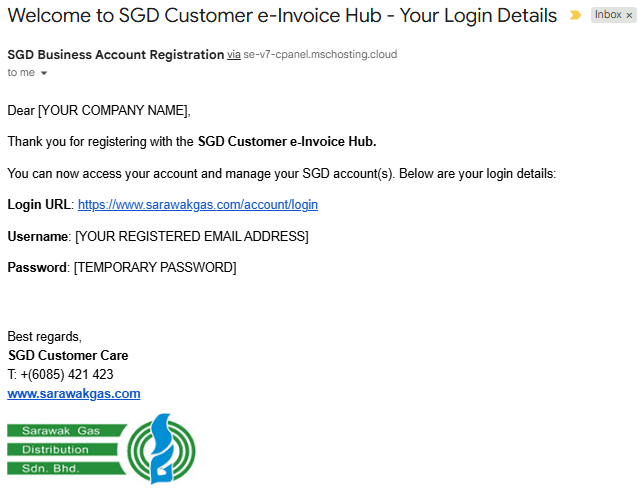
What to Expect in Your Email
Shortly after registering, you will receive an email with your login URL, username, and temporary password. Login using the provided credentials.
|
| 1 |
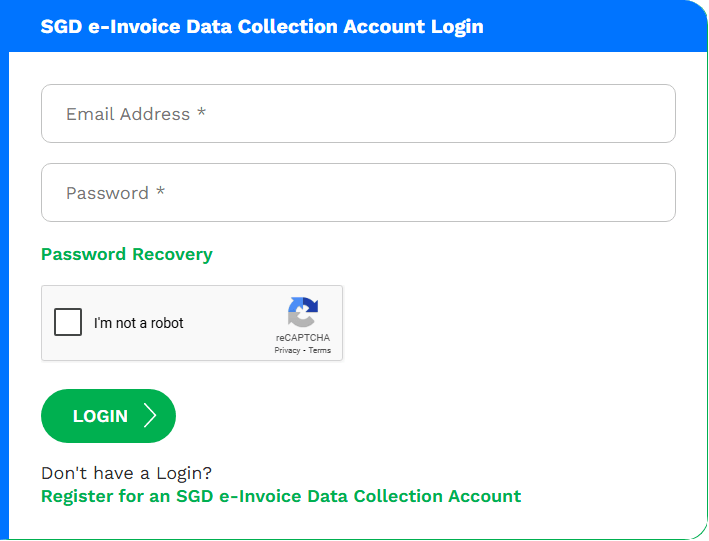
Go to the Login Page:
https://www.sarawakgas.com/account/login
|
| 2 |
Enter Your Credentials
- Email Address: Use the one you registered with.
- Password: Enter the password you set or the temporary password from your registration email.
Forgot your password? Click on the Password Recovery link.
|
| 3 |
Complete the reCAPTCHA
Check the “I’m not a robot” box to verify that you’re not a bot.
|
| 4 |
Click “LOGIN”
If your credentials are correct, you’ll be re-directed to your dashboard.
|
| 1 |
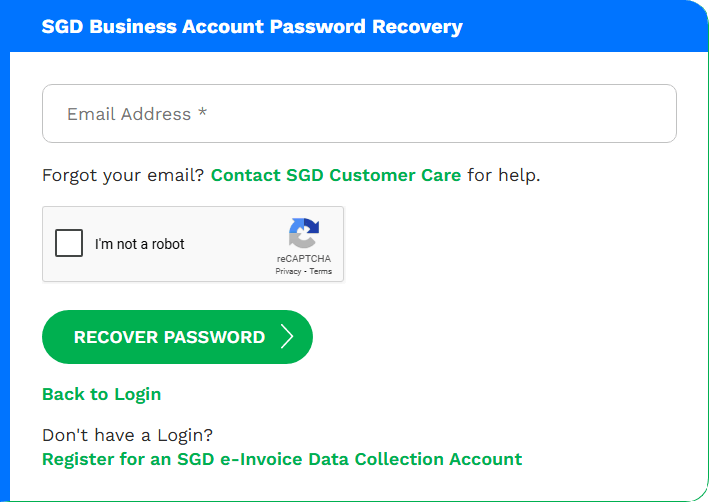
Navigate to the Password Recovery Page
Click “Password Recovery” on the login screen or go directly to: https://www.sarawakgas.com/account/password-recovery
|
| 2 |
Enter Your Registered Email Address
Provide the email you used during registration.
|
| 3 |
Forgot Your Email?
If you are not sure which email you registered with, click “Contact SGD Customer Care” for help.
|
| 4 |
Complete the reCAPTCHA
Check the “I’m not a robot” box to verify that you’re not a bot.
|
| 5 |
Click “RECOVER PASSWORD”
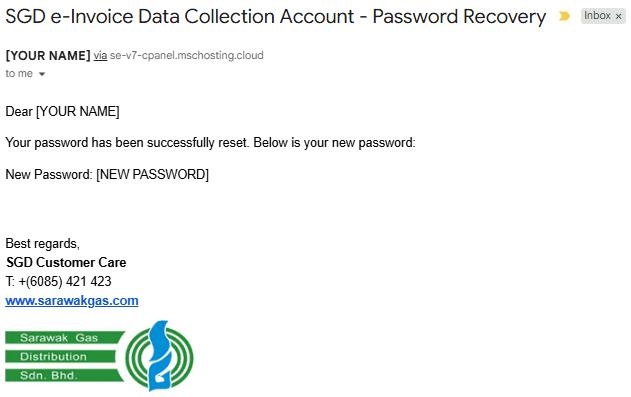
After submission, you will see the following confirmation message:

You’ll receive an email shortly. Use the temporary password provided to log in.
|
| 1 |
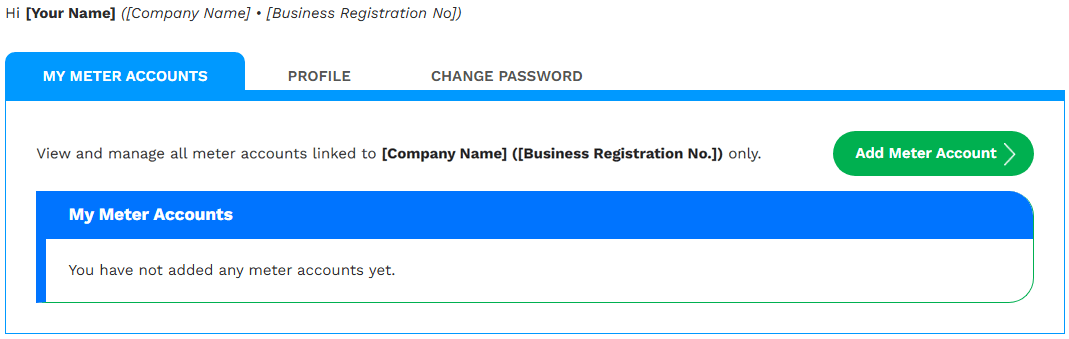
Login to Access Your Business Dashboard
Use your credentials to log in to the SGD Customer e‑Invoice Hub. After logging in, you'll be directed to your Business Dashboard.
|
| 2 |
Click “Add Meter Account”
|
| 3 |
Complete the Meter Account Form
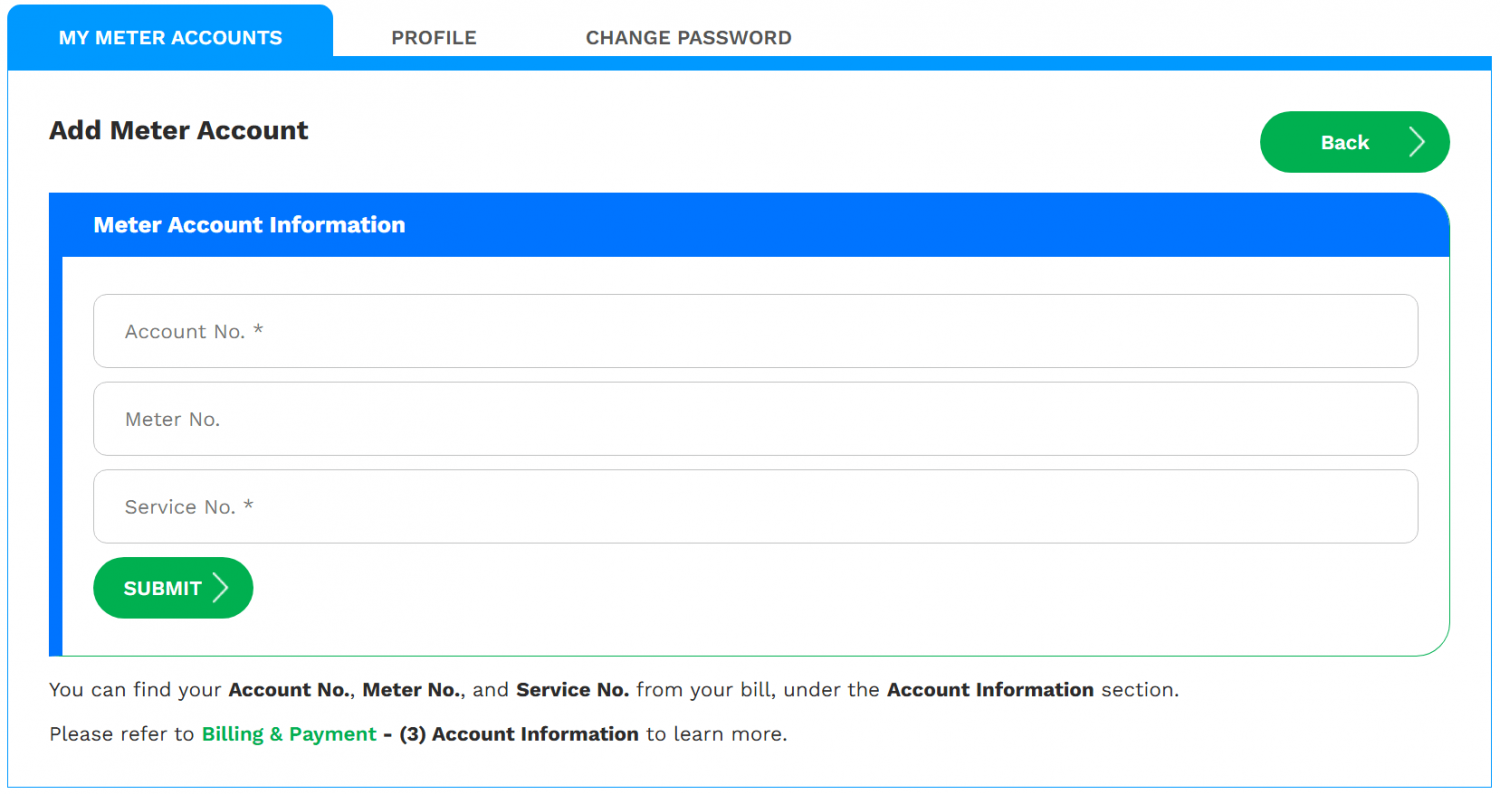
- Account No.
- Meter No.
- Service No.
You can find your Account No., Meter No., and Service No. from your bill, under the Account Information section.
Please refer to Billing & Payment – (3) Account Information to learn more.
|
| 4 |
Click “SUBMIT”
After submission, you will see the following confirmation message:

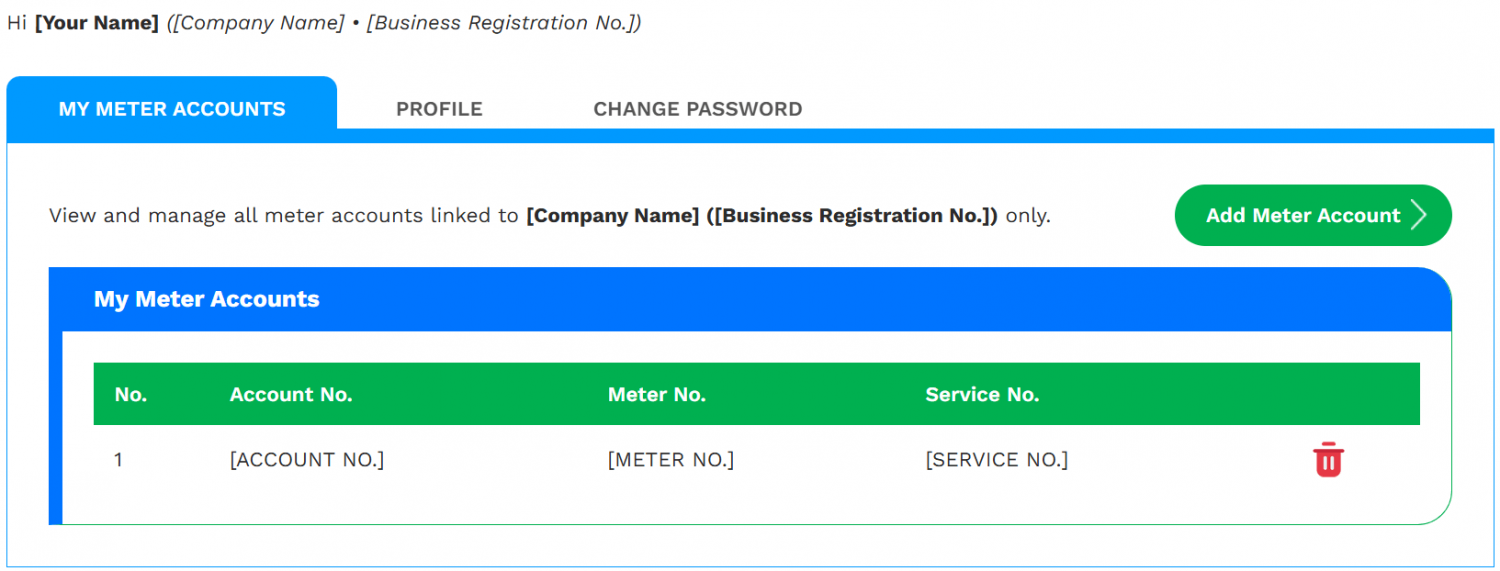
The meter account will now appear in My Meter Accounts.
|
| 1 |
Login to Access Your Business Dashboard
Use your credentials to log in to the SGD Customer e‑Invoice Hub. After logging in, you'll be directed to your Business Dashboard.
|
| 2 |
Open the Profile Page
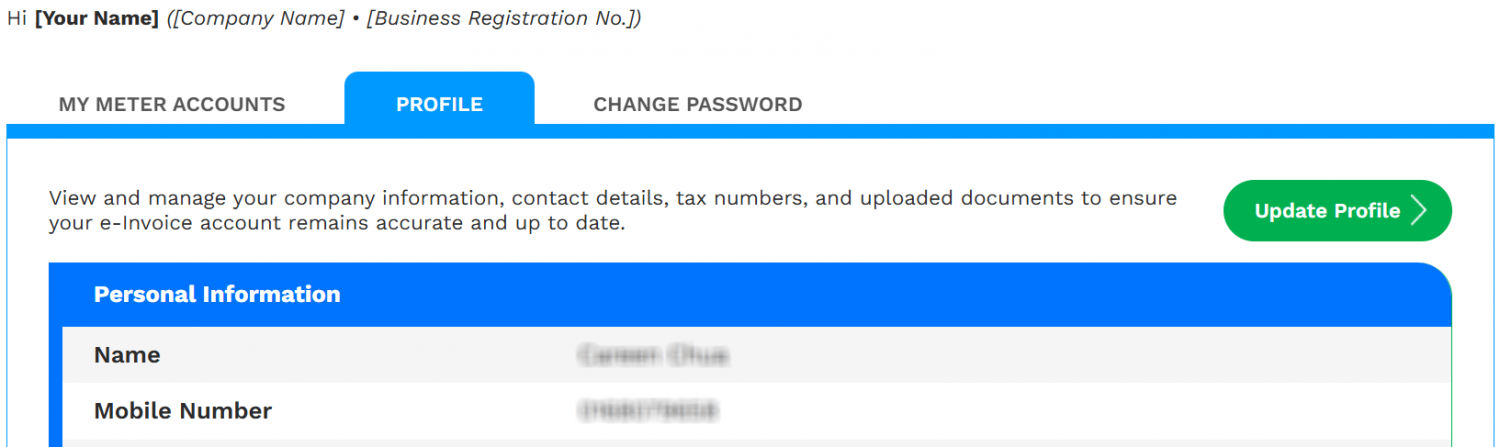
Select the “PROFILE” tab to view your current business profile information.
Click “Update Profile” to enter edit mode.
|
| 3 |
Make Your Changes
- Personal Information
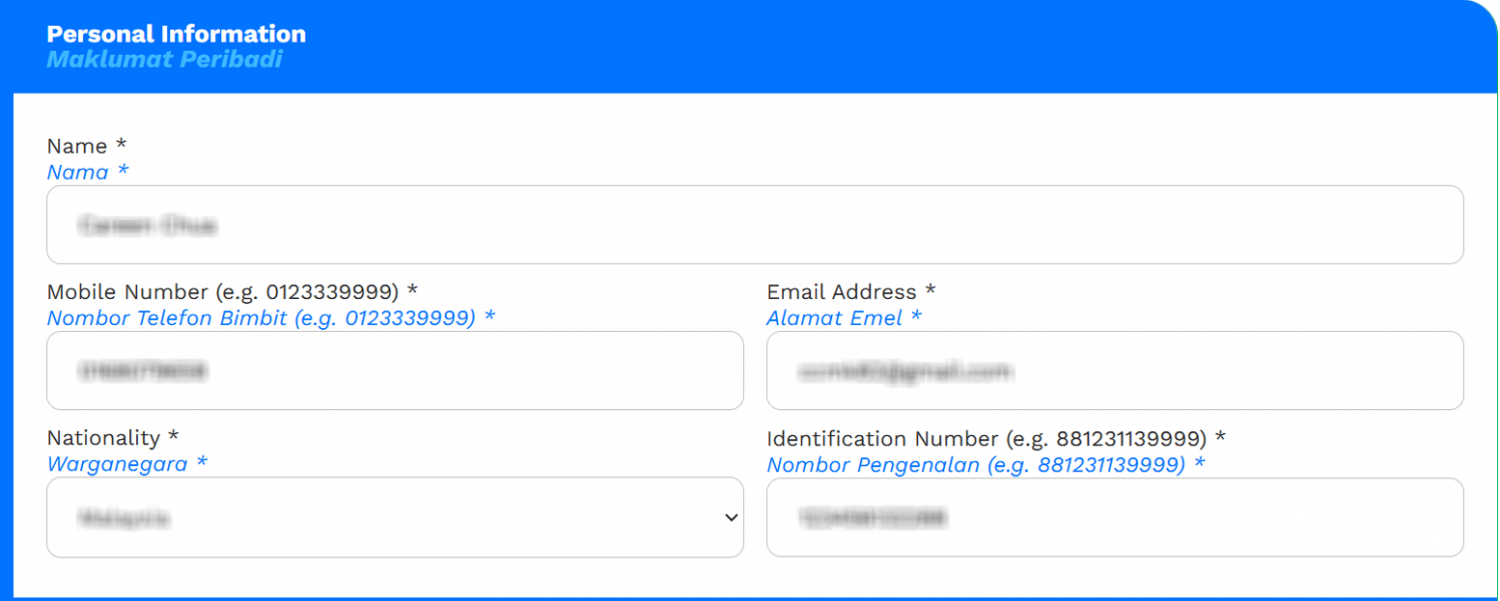
- Name: Your full name.
- Mobile Number: Format: 0123339999.
- Email Address: A valid email (used for login).
- Nationality: Select from the dropdown.
If you selected Malaysia, please provide:
- Identification Number: Your MyKad/NRIC number.
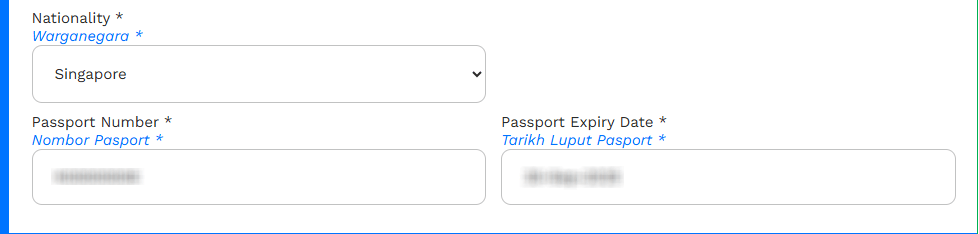
If you selected another country, please provide:
- Passport Number
- Passport Expiry Date
- Business Information
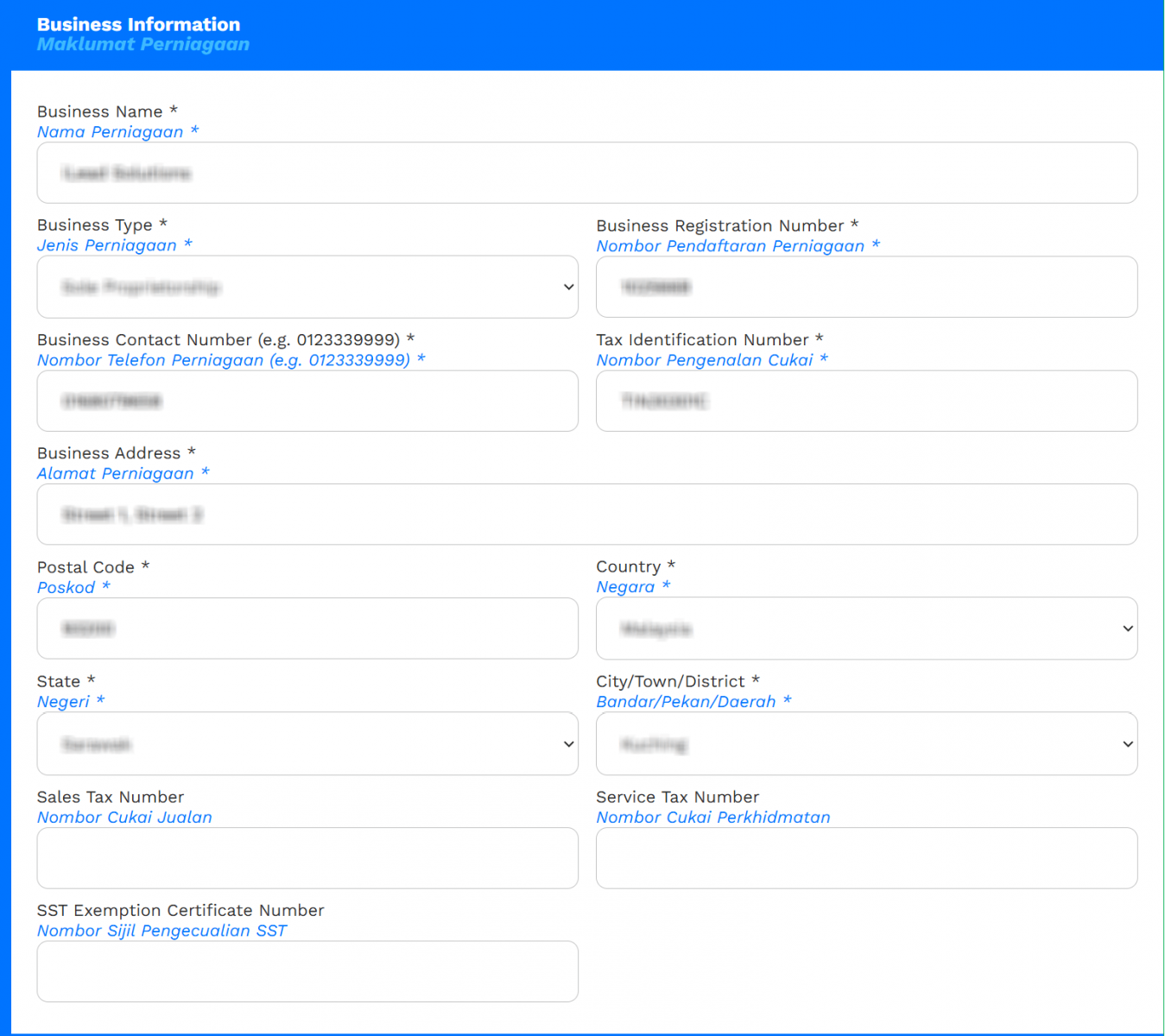
- Business Name
- Business Type: (e.g., Sdn Bhd, Sole Proprietorship)
- Business Registration Number
- Business Contact Number: Format: 0123339999.
- Tax Identification Number
- Business Address
- Postal Code, City/Town/District, State, Country (auto-filled as Malaysia)
- Sales Tax Number (if applicable)
- Service Tax Number (if applicable)
- SST Exemption Certificate Number (if applicable)
- Attachments
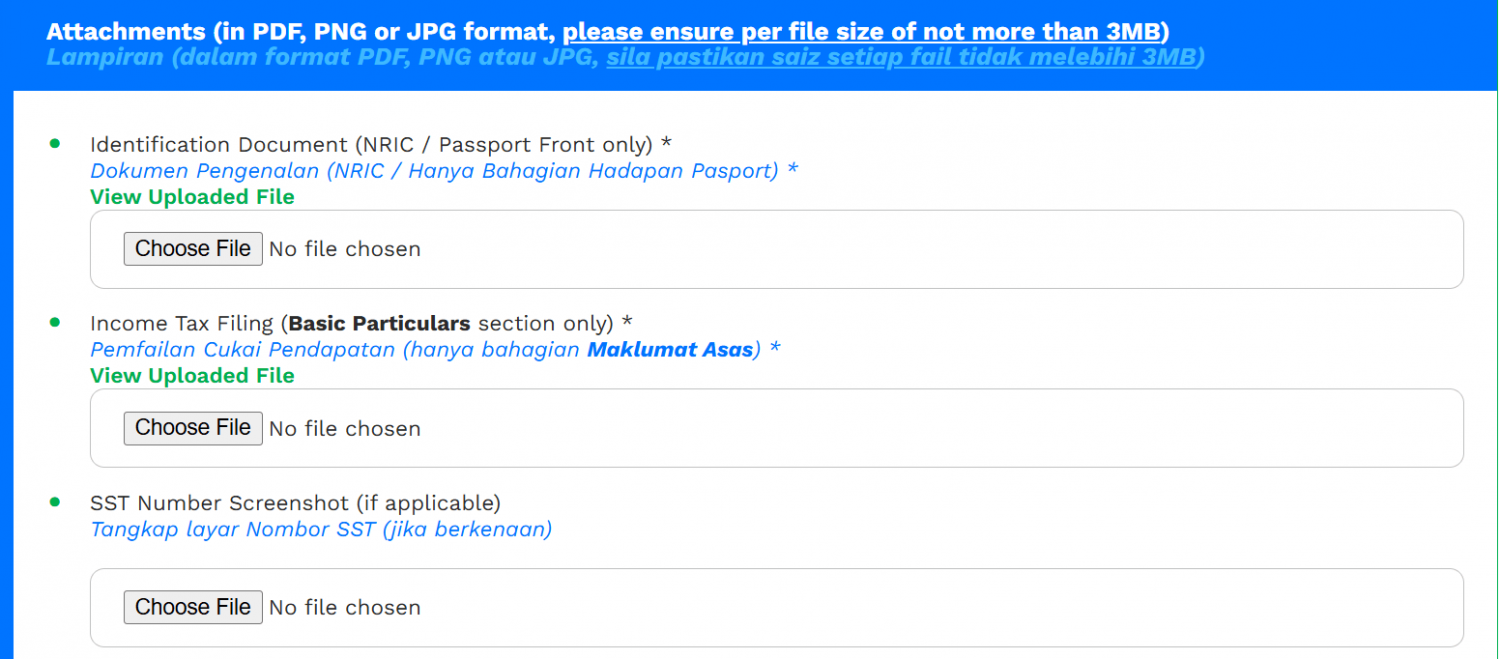
Upload the required attachments. Ensure all files are in PDF, PNG, or JPG format and do not exceed 3MB each.
- Identification Document (NRIC or Passport front only)
- Income Tax Filing Document (Basic Particulars section only)
- SST Exemption Screenshot (if applicable)
|
| 4 |
Consent & Submission
- Tick the checkbox to accept the Terms of Use and Privacy Policy.
- Complete the reCAPTCHA verification.
- Click the “SUBMIT” button.
|
| 5 |
Submission Confirmation
Once you submit the form, you will see the following success message:

|
| 1 |
Login to Access Your Business Dashboard
Use your credentials to log in to the SGD Customer e‑Invoice Hub. After logging in, you'll be directed to your Business Dashboard.
|
| 2 |
Navigate to “Change Password”

|
| 3 |
Enter Current & New Password
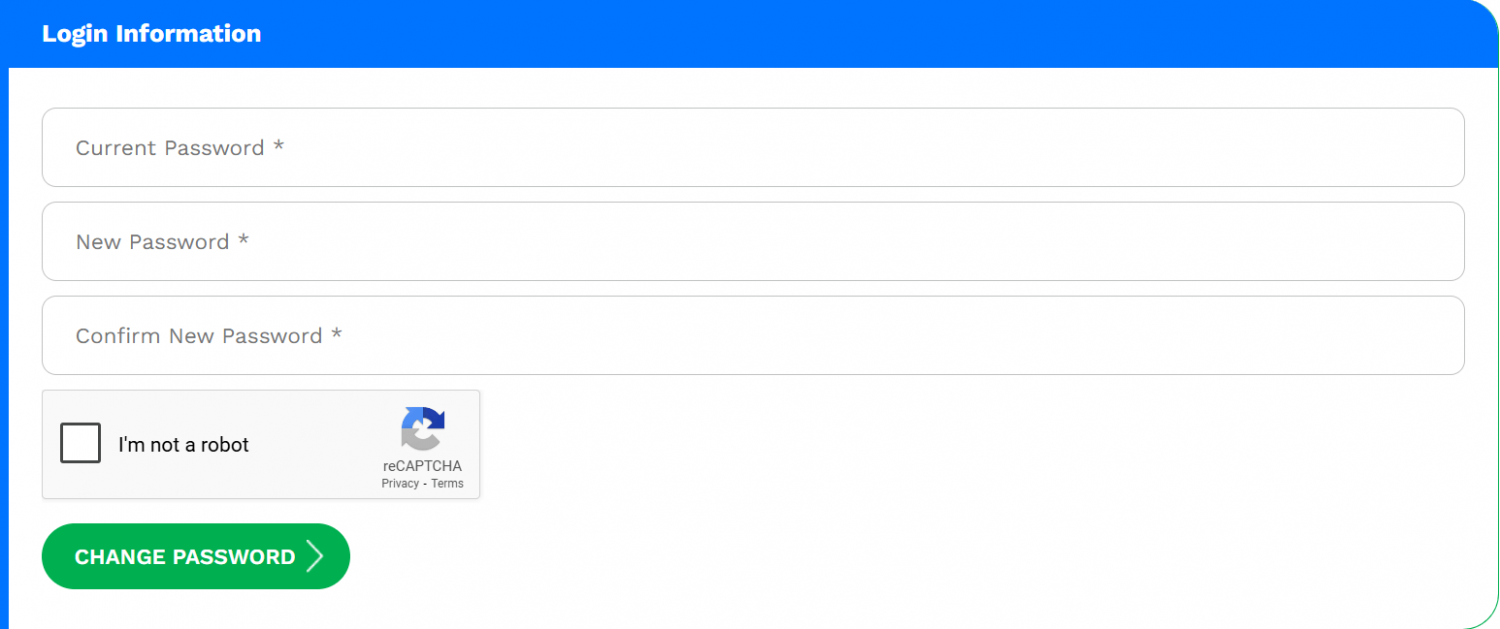
- Current Password: Type your existing password.
- New Password: Create a strong new password.
- Confirm New Password: Re-enter the new password for verification.
|
| 4 |
Complete the reCAPTCHA
Check the “I’m not a robot” box to verify that you’re not a bot.
|
| 5 |
Click “CHANGE PASSWORD”
After submission, you will see the following confirmation message:

You will need to use your new password on your next login.
|